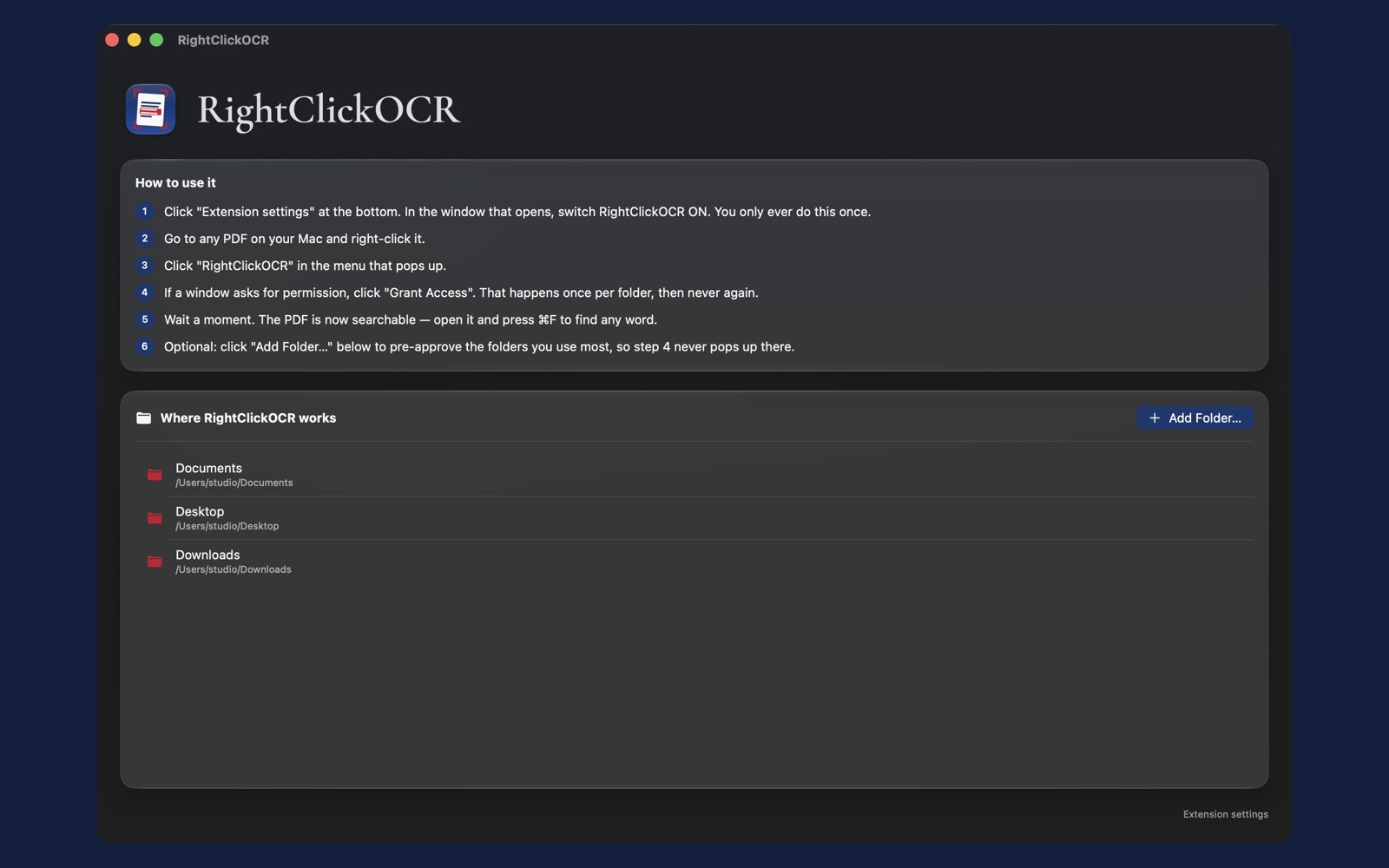
RightClickOCR uses Apple’s on-device Vision engine to turn scanned PDFs into searchable documents straight from Finder. No cloud. No accounts. Your files never leave your Mac.
Requires macOS 26 or later · $24.99 one-time purchase, no subscription
There is no app window in the workflow. The tool comes to your files, not the other way around.
Or right-click a whole folder of them, which processes every PDF inside in one batch. RightClickOCR lives in Finder’s context menu, so there is nothing to open and nothing to drag anywhere.
Apple’s Vision framework reads every page on your Mac’s own silicon. Crooked pages are straightened automatically, and handwriting is recognized too (accuracy depends on legibility). Nothing is uploaded, because there is no server.
A new copy appears beside your original with an invisible text layer under the page image. The page looks identical, but ⌘F, Spotlight, and Preview search now all just work. The original is never modified.
Adds an invisible text layer to your scan so ⌘F just works. The page looks exactly the same, and a new searchable copy is saved beside the original. Whole folders can be processed at once.
Lives in Finder’s right-click menu, with a bundled Quick Action that covers Desktop and Documents. There are no windows to manage and no app to babysit. Open RightClickOCR only when you want to see activity.
All recognition runs on your Mac with Apple’s Vision framework. Sandboxed, with access only to folders you approve. No analytics, no telemetry, and nothing ever uploaded.
Right-click a folder and every PDF inside gets a searchable copy. Perfect for a discovery production, a client’s document dump, or years of scanned records. See the batch guide.
Tilted pages are straightened automatically during recognition, and handwritten text such as meeting notes, file memos, and margin scribbles is recognized as well. Clearer writing yields better results.
RightClickOCR always writes a new “Name (Searchable).pdf” next to your file. Your original is never touched, never overwritten, never re-saved.

Most OCR tools promise privacy in their terms of service. RightClickOCR promises it in its architecture, because OCR runs entirely on your Mac with Apple’s Vision framework. The app is sandboxed, touches only folders you approve, and collects no file contents, no metadata, and no analytics. It collects nothing at all. There is no server to trust, because there is no server.
Read the Privacy PolicyMany Mac OCR utilities license the same third-party recognition engines and wrap them in heavyweight suites, or send your document to a cloud API. RightClickOCR takes a different route. It runs on Apple’s Vision framework, the same text-recognition technology Apple builds into macOS and tunes for its own silicon.
That choice shows up everywhere you touch the app. Recognition runs on your Mac’s Neural Engine, so it is fast and the app stays small. It improves with every macOS release, because Apple keeps training the engine that ships with the operating system. And it cannot phone home, because the engine lives in the OS rather than on a server. Whole folders batch the same way single files do. Right-click, walk away, and come back to searchable documents.
RightClickOCR was built by a practicing attorney who was drowning in unsearchable discovery scans and couldn’t ethically feed privileged client documents to a cloud OCR service. If confidentiality is part of your job, this tool was built for your job.
Discovery productions, case files, exhibits, signed agreements. Search 4,000 pages of scans without a page of it leaving your machine. Start with the discovery guide.
Faxed referrals, charts, and correspondence that must stay private. On-device OCR means records stay on the machine they’re already on. Read more.
Scanned W-2s, 1099s, receipts, and prior-year returns. Right-click the client’s folder, get searchable copies of everything, keep everything local.
Archival scans, old papers, interlibrary loan PDFs. Batch-OCR a folder of sources in one right-click, then let Spotlight search your whole corpus.
The daily scan pile, batch-processed. There is no app to open and no workflow to learn, because it’s the same Finder you already live in.
Every product below is good at what it’s for. RightClickOCR wins on the narrower promise of being local, instant, and cheap once.
| Alternative | What it is | The trade-off |
|---|---|---|
| Cloud OCR services | Upload a PDF, get text back | The upload is the dealbreaker for privileged, patient, or client-confidential documents. RightClickOCR’s OCR never leaves the Mac. |
| Adobe Acrobat Pro | Full PDF suite, subscription pricing | Excellent if you live in the full suite. For OCR alone you launch a multi-gigabyte app, wait out an updater, and sign in to Adobe so a menu can appear. That is renting a toolbox by the year to use one screwdriver. RightClickOCR is $24.99 once, and it never asks who you are. |
| macOS Preview / Live Text | Free, built in | Live Text lets you select text on screen, but it does not write a searchable text layer back into the PDF file, so ⌘F and Spotlight still see a blank scan. It doesn’t batch either. If Live Text covers your need, you don’t need us. |
| RightClickOCR | A single tool for right-click OCR in Finder | On-device only, macOS 26+, one job done well. No editing, no redaction, no export formats. Just searchable PDFs, locally, for $24.99 once. |
One-time purchase on the Mac App Store
macOS requires a one-time toggle for every third-party Finder-menu extension. Turn it on under System Settings → General → Login Items & Extensions → Extensions → Finder. The app’s onboarding has an “Open Extension Settings” button that jumps straight there. Full walkthrough on the support page.
No. OCR runs entirely on your Mac using Apple’s Vision framework. There’s no server, no account, and no telemetry. How we can say that with confidence.
Never. RightClickOCR writes a new “Name (Searchable).pdf” beside the original and leaves the original untouched. Details.
Yes. Right-click a folder and every PDF inside is processed in one batch. How batch processing behaves.
An honest look at every way to do it, whether free, manual, or one right-click.
Your scan is a photograph of paper. Here’s what that means and how to fix it.
A comparison of your local-only options for documents that can’t leave the machine.